ServiceNow AI Search
Raytion Connector Hub for AI Search
Install the Raytion Connector Hub for AI Search
To enable the integration of external third-party content information, the Raytion Connector Hub for AI Search needs to be installed on your Now platform. Download the app from app store and it allows you to start with the integration of your third-party content immediately after the installation. It will create Source System specific content schema in AI Search and will define the corresponding Indexed Source.
To install the Connector Hub App, follow the instructions below:
-
Navigate to menu
My Company Application
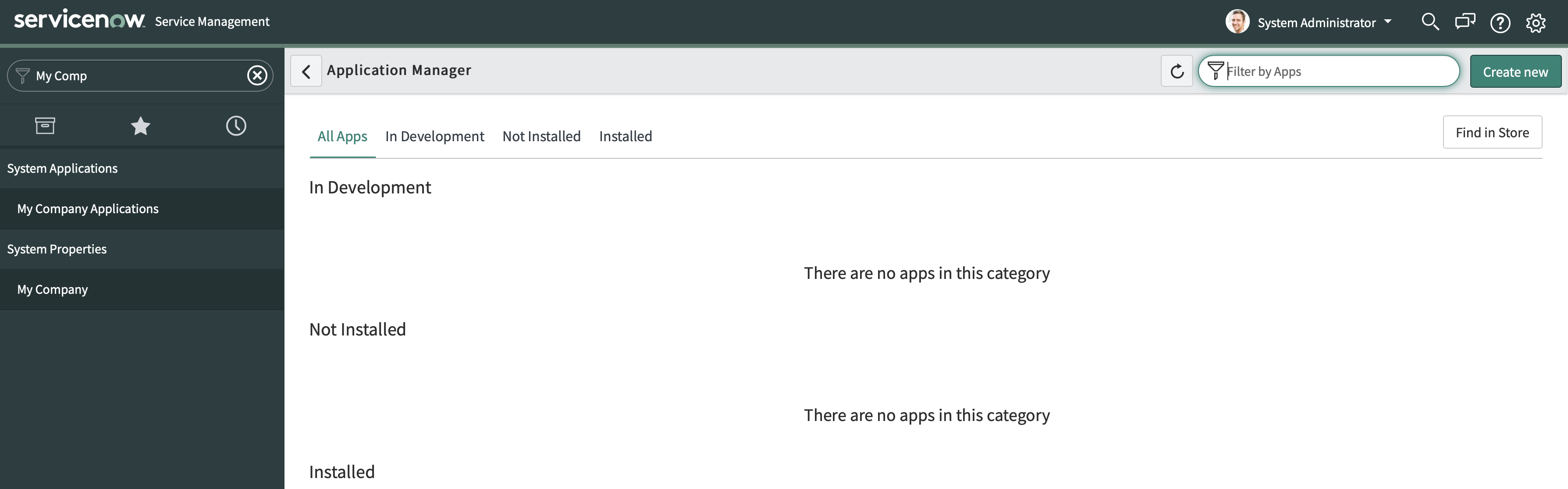
-
The button
Find in Storewill navigate you to the Store App -
Search for
Raytion Connector Hub
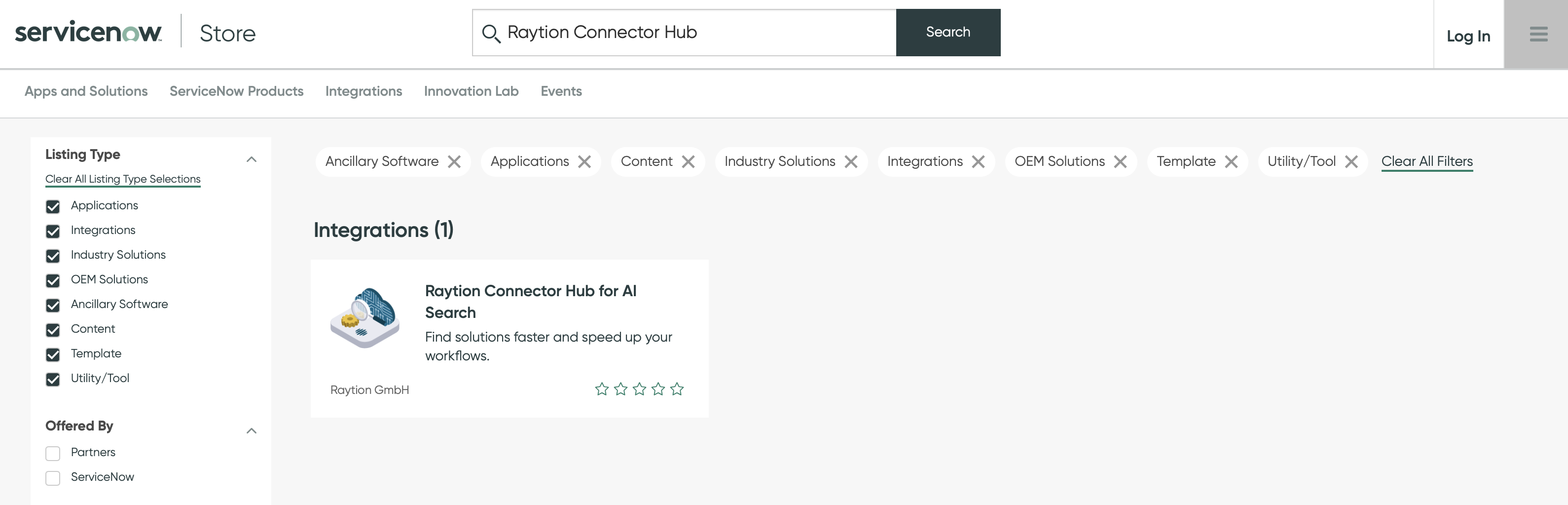
-
Request App or Trial
Details about the installation can be retrieved from our Store App Installation Guide.
Install the User Mapping Table
The User Mapping Table installed by the Connector Hub requires a execution of a Fix Script once after the initial installation of the app to link it to the corresponding Indexed Source. To run the script, navigate to the Fix Script Overview and search for the script named Raytion Confluence m2m Record.

Make sure to switch to the Application Scope Raytion Connector Hub for AI Search before executing the script.
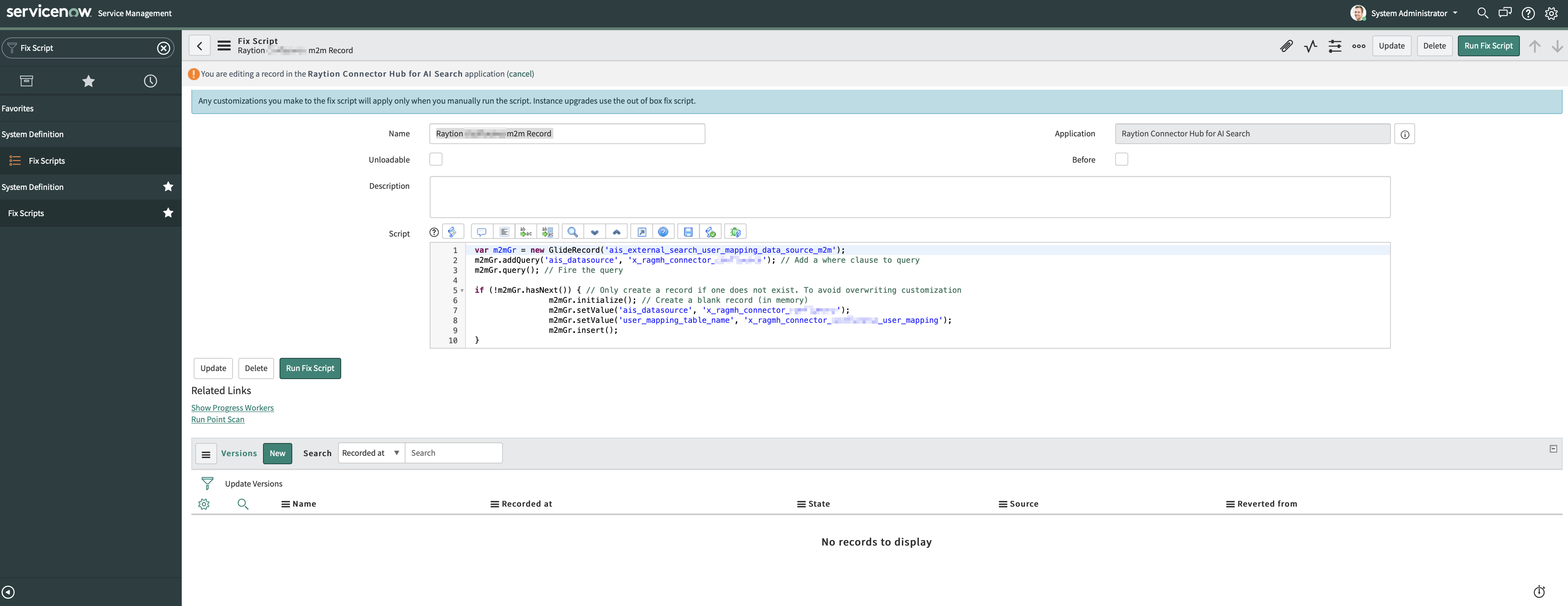
Create Technical User Account
The connector requires an user account with at least the role ais_external_content to ingest items into AI Search. It is recommended to setup a dedicated technical user account with web service access only.
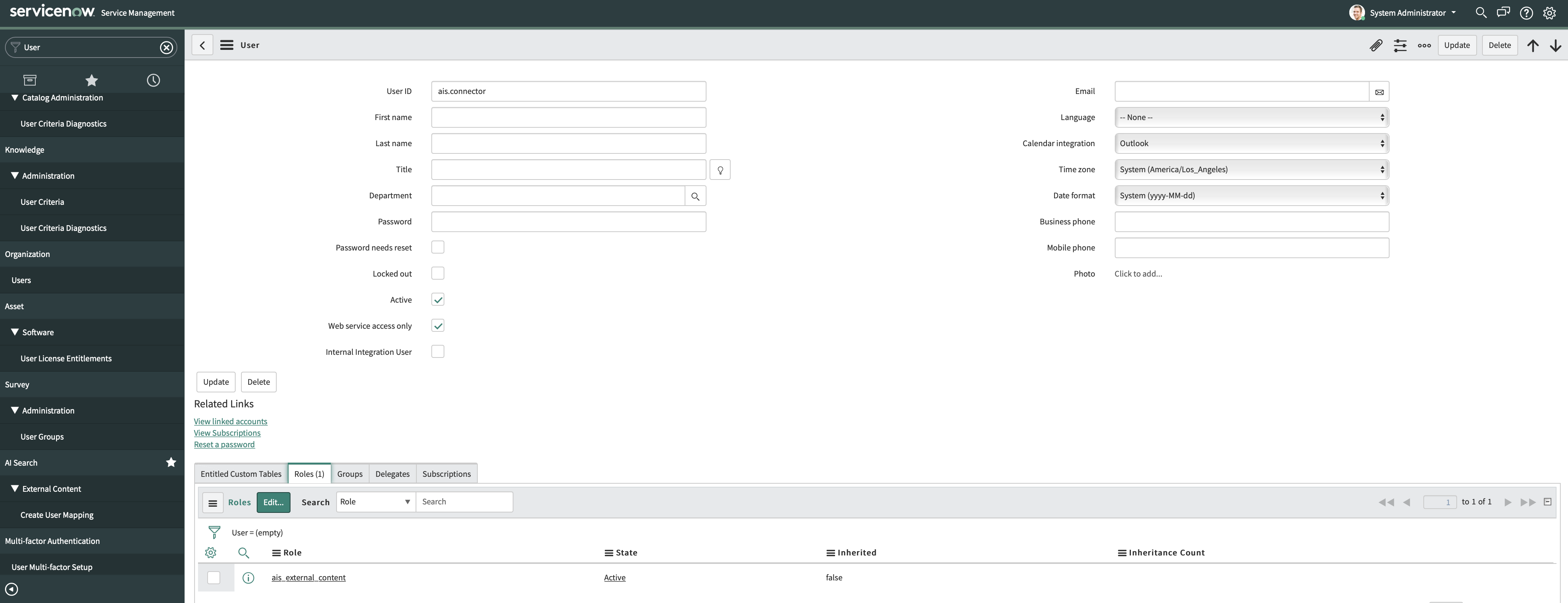
Service Portal Search
In order to make the ingested items searchable in your Service Portal Search, a new Search Source needs to be created and linked to the Default Search Profile.
Create and Link Search Source
-
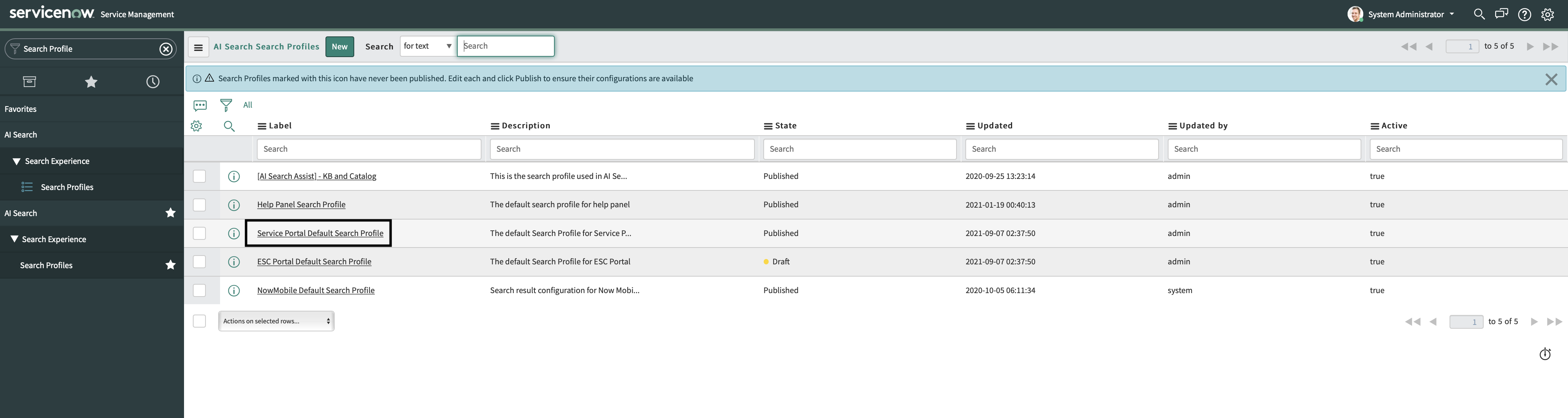
Navigate to the Search Profile Overview under AI Search Menu.
-
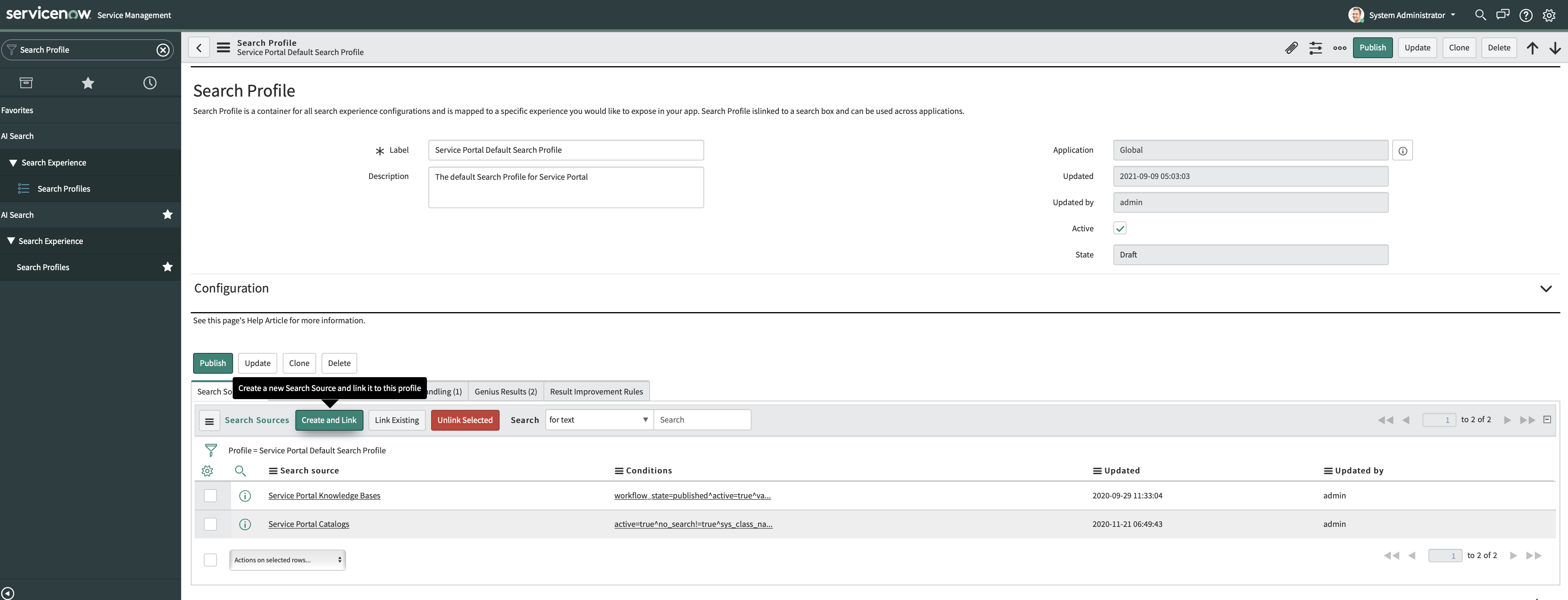
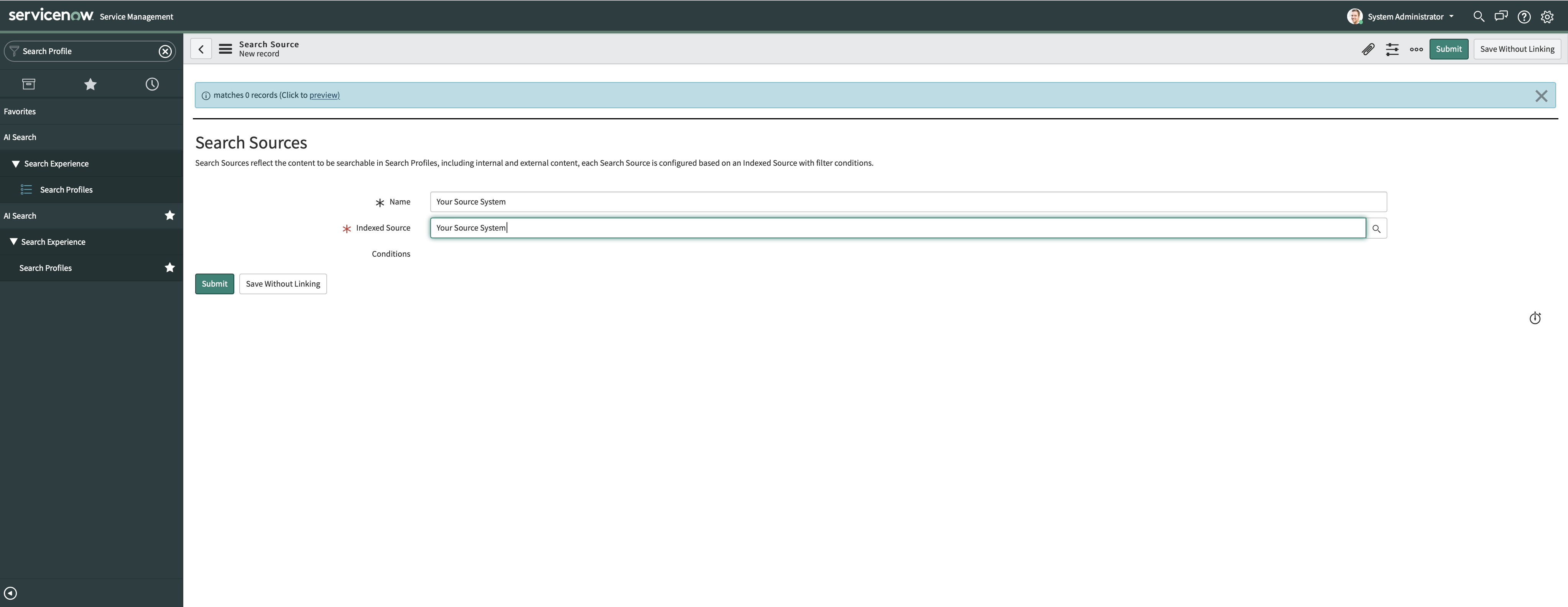
Create and link a new Search Source with name of your preference referencing the Indexed Source created by the Connector Hub. The Indexed Source installed by the Connector Hub is named according to the Source System to synchronize with the Connector.
-
Publish the Default Profile to apply the changes.
Define Facets (Optional)
Once, the Search Source is created in the Default Search Profile, you can create facets in the Default Search Application.
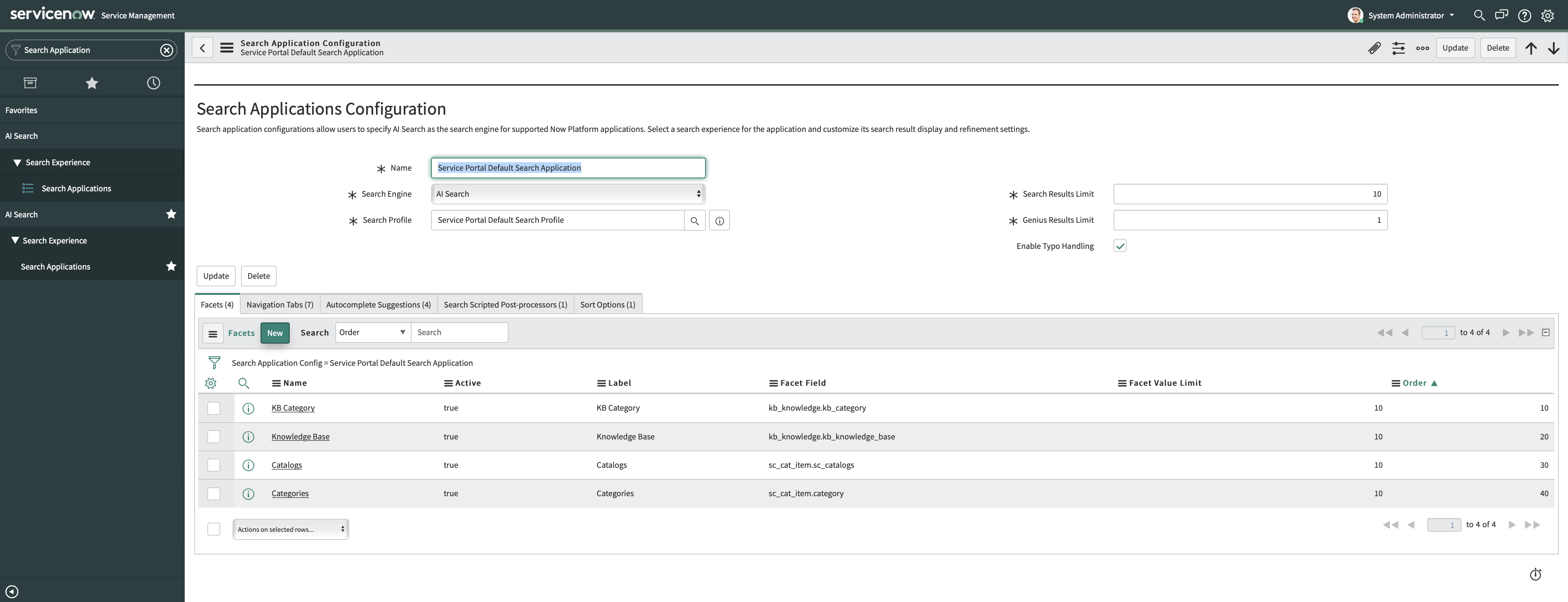
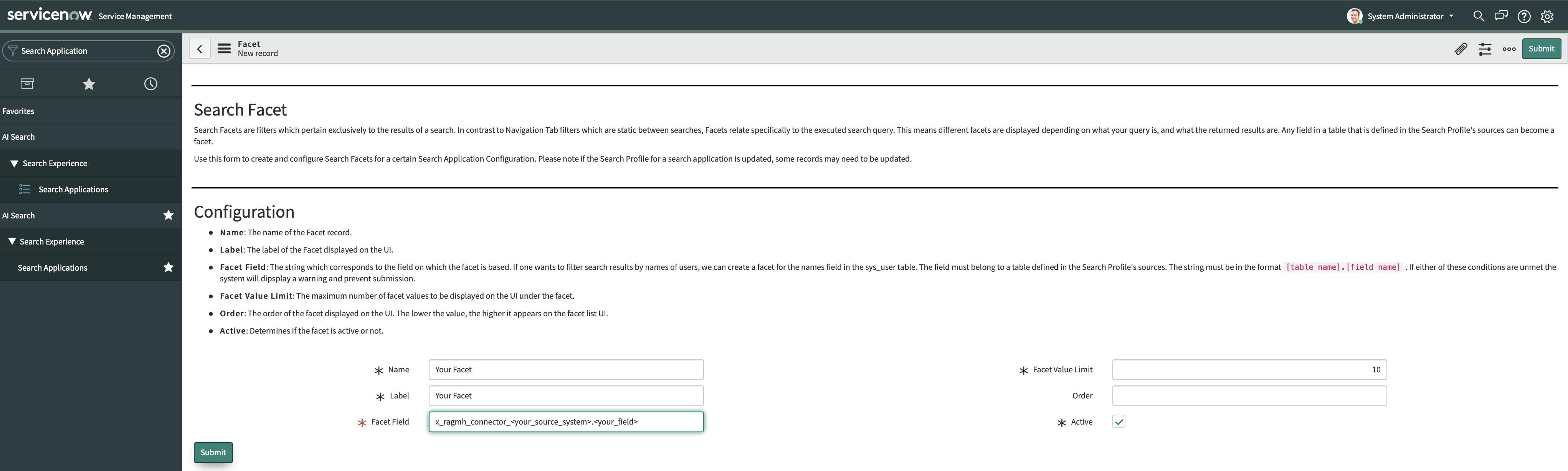
The list of fields defined in the schema can be retrieved from Store App Installation Guide.
Link Search Result Configuration (Optional)
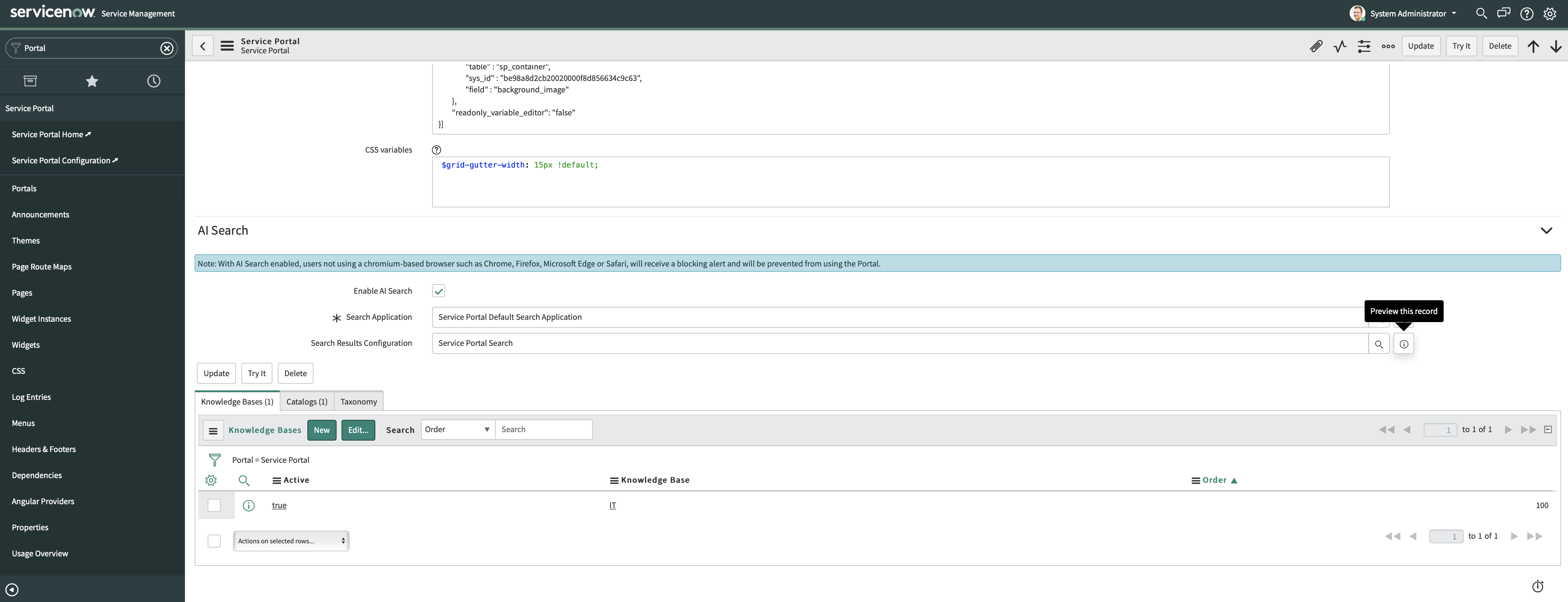
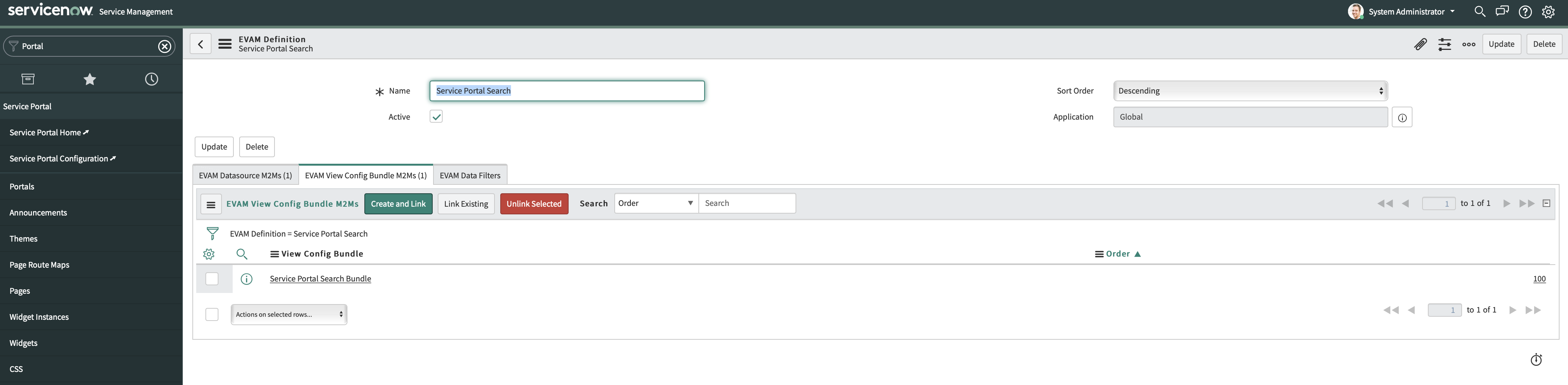
The Connector Hub installs a Search Result Configuration Bundle which can be added to the Default Search Result Configuration to enrich the view in the search result.
-
Open the Search Result Configuration Record of the Service Portal
-
Link the installed EVAM View Config Bundle M2M

Modify AI Search Constraints (Optional)
Rate Limiting
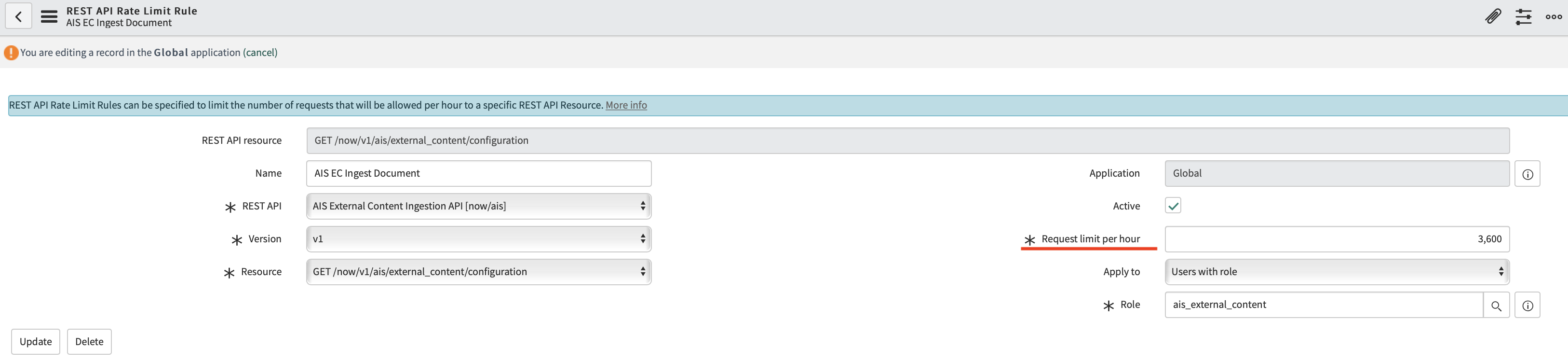
The Rate Limiting restricts the number of requests sent to AI Search to 3600 requests per hour by default.
In order to allow more requests to be sent by the connector, navigate to System Webservices → REST → Rate Limit Rules.
Modify the rate limit rules for AIS EC Ingest Document and AIS EC Store Content.

Apply the changes also in the connector configuration under Advanced Configuration → ServiceNow AI Search → ServiceNow AI Search Connection Settings → Requests per second.
Extend Content Schema (Optional)
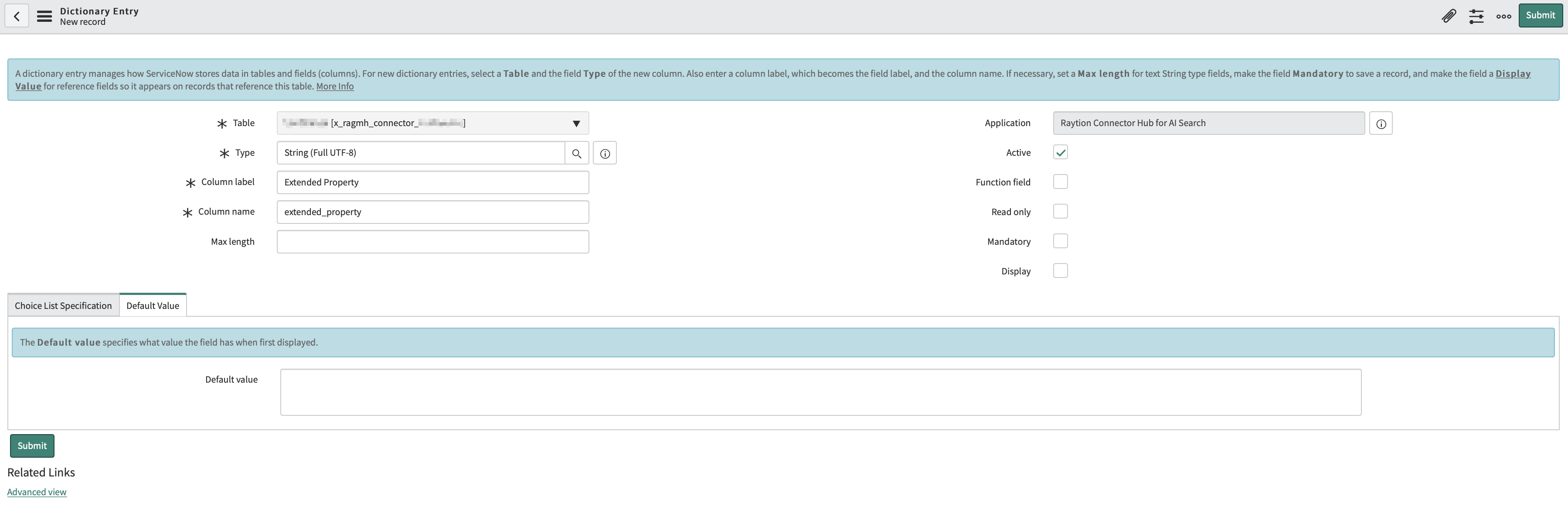
Only metadata defined in the external content schema is accepted and processed by AI Search. As the connector provides further metadata in addition to the properties defined in the schema, you can add a new custom property to the schema in order to index and integrate it into your Search Application.
-
Login as user with the role
ais_admin. -
Navigate to the Tables Menu.
-
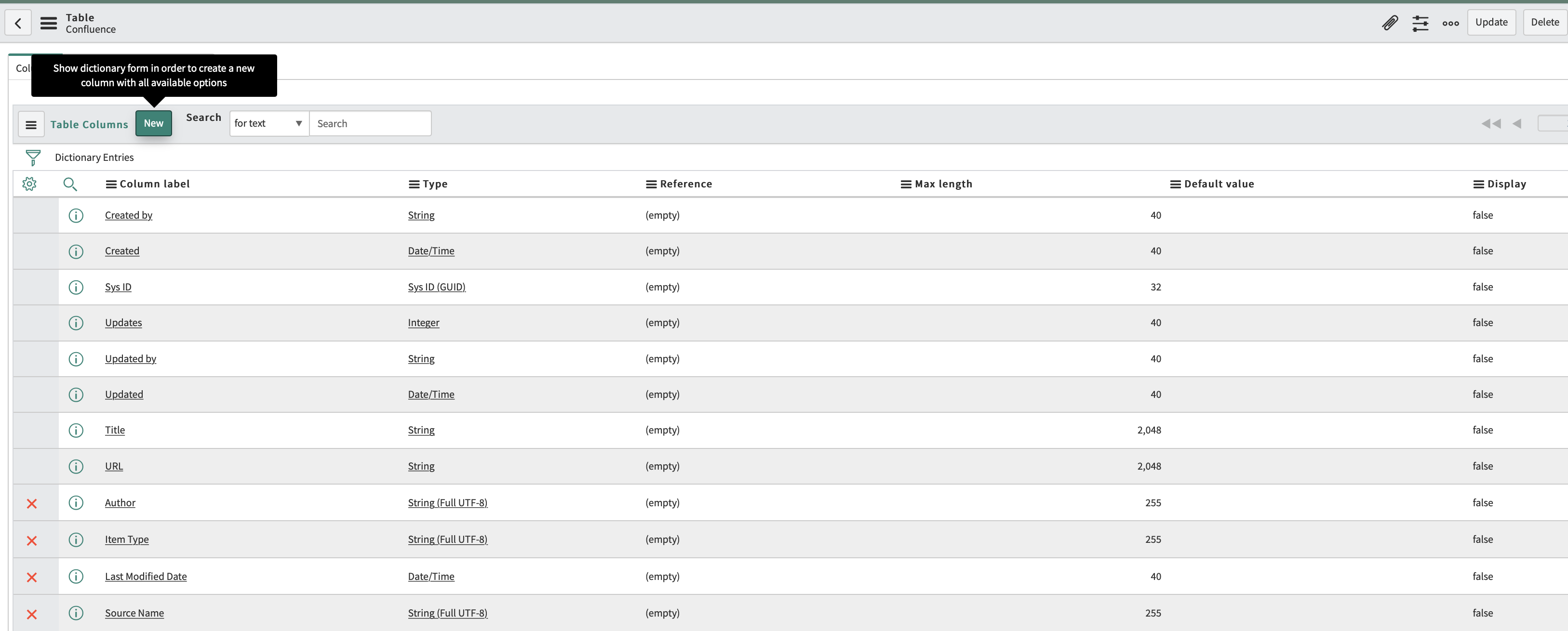
Select the respective external content table (can be retrieved from the connector configuration under
Basic Configuration → ServiceNow AI Search Settings → Schema).
-
Make sure you have the App Scope
Raytion Connector Hub for AI Searchselected. -
Add a new column based on the list of additional metadata provided by the connector.
| If you use the Raytion Search Result Configuration provided by the Raytion Connector Hub App, do not delete any of the existing property defined in the schema. |